Getting Started: How to Purchase, Download and Unzip Sweet Shoppe Products
It’s been a hot minute since we’ve updated our getting started guide on how to purchase, download & unzip your new Sweet Shoppe goodies! Of course with many different browsers, operating systems and unzipping programs, this is just how I purchase, download & unzip. Thankfully most things are pretty similar despite the different options we all use.
PURCHASING: In order to create digital scrapbook layouts, you need supplies just like traditional paper scrapping. There are designers who create beautiful digital products too. Designers create all the same supplies that you would use traditionally- papers, elements, flowers, paint, stitches, etc. etc. One of my favorite supplies to use as a beginner was templates. Templates are a fun way to learn digital scrapbooking. Shopping for digital supplies is easy & fun!
- Navigate in your internet browser to your favorite Digital Scrapbooking Website & click on Shoppe
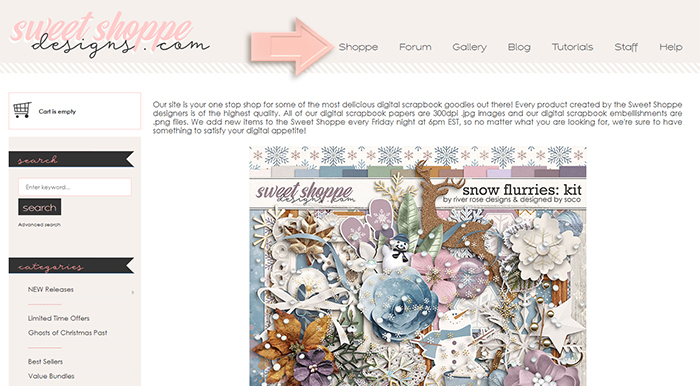
- The most fun part- shop for your favorite supplies & add to your cart!
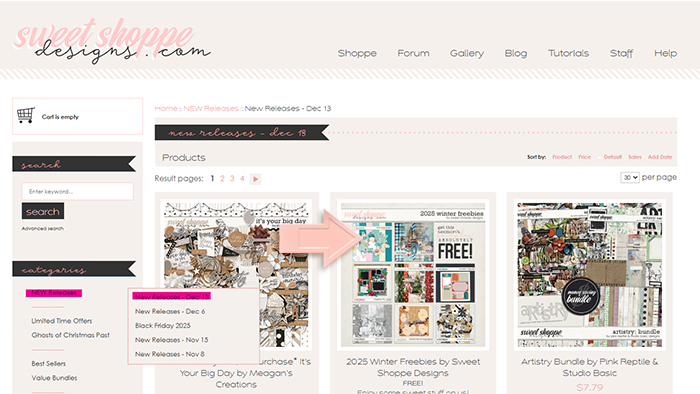
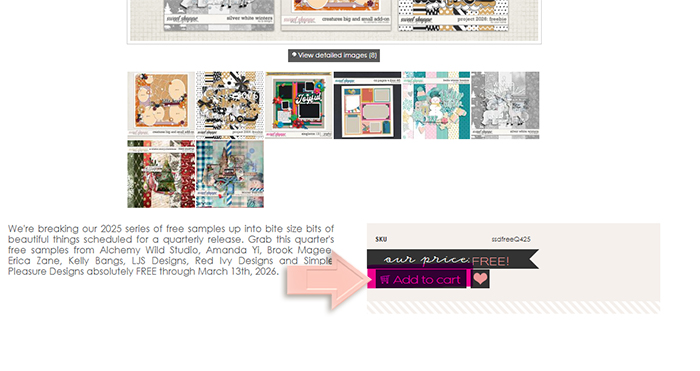
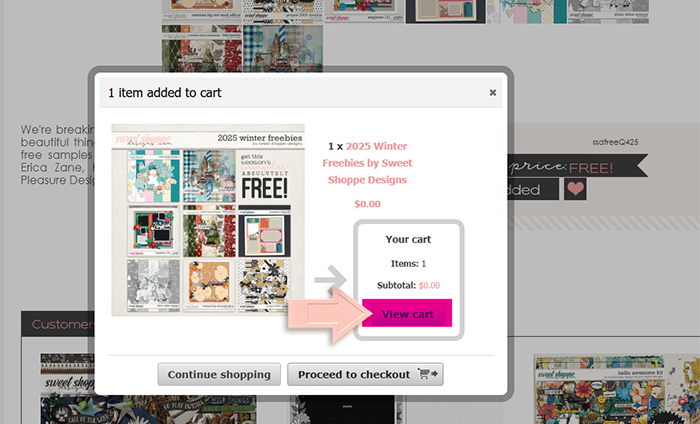
- Go to Cart to check out
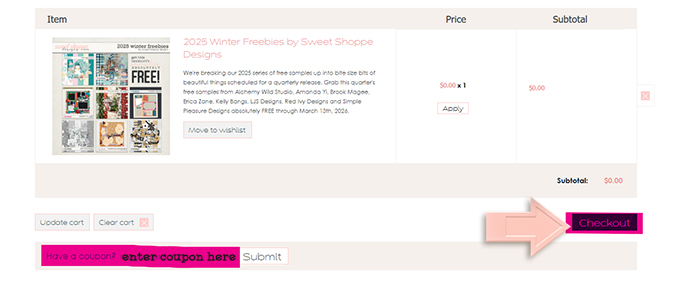
- Enter coupons if applicable & select check out
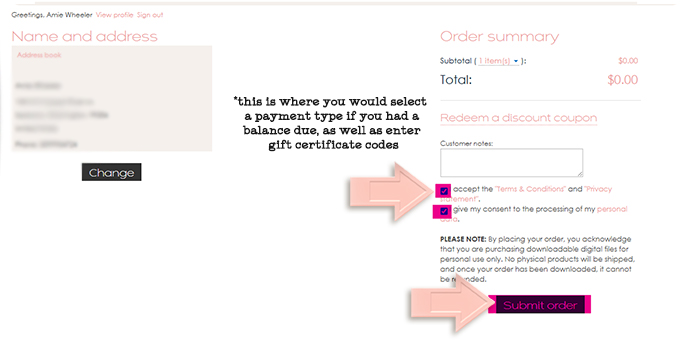
- Select your payment option if payment is due, enter any gift certificates, select the 2 boxes & Submit Order
DOWNLOADING: Digital supplies need to be downloaded in order to use them in your scrapbooking software.
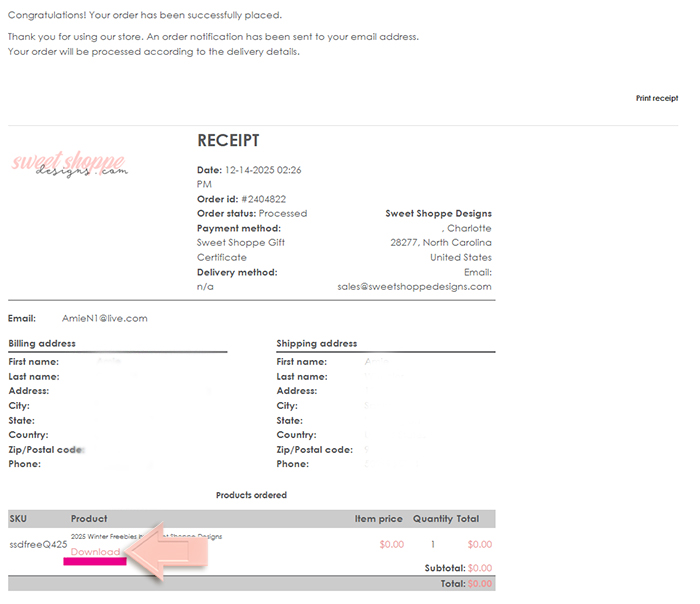
1. After you complete payment for your order, the invoice(s) will process. Select “download” to access the download links (if purchasing multiple items, there will be multiple invoices. Scroll down to find additional download links.) *You will also receive an email to the address you created your account with that will include your invoice(s) & download links as well.
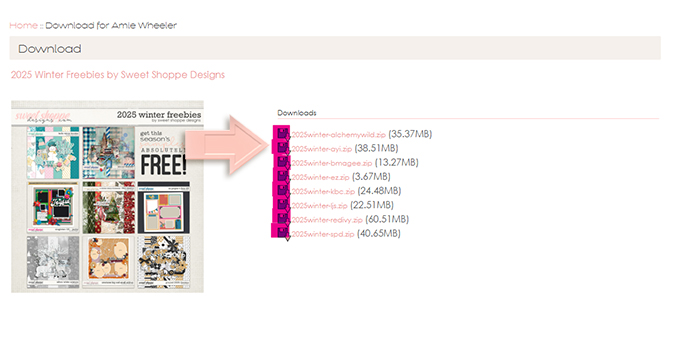
2. Select each download link included for that file
 3. In the Chrome browser- a download button will show downloads in process & then the finished zipped files into a Downloads Folder. (Your downloads may go to a different folder depending on your settings.)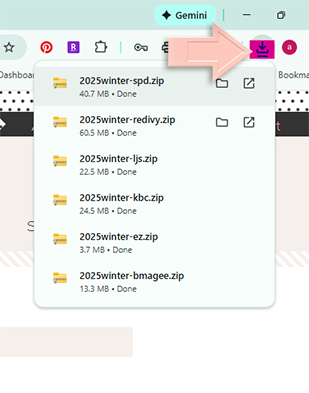
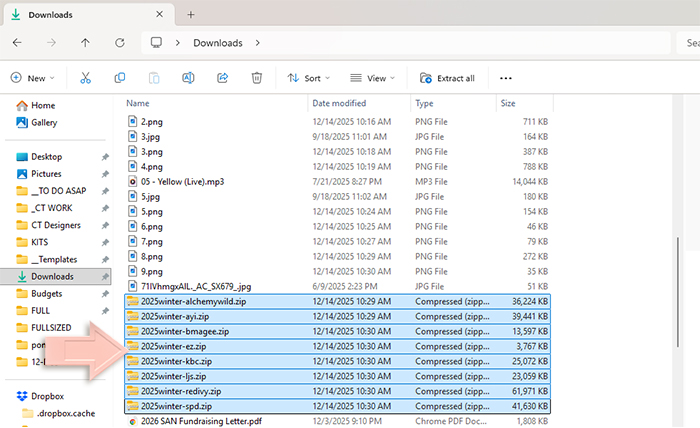
EXTRACTING/UNZIPPING: Files you download from the internet are often compressed or zipped so that they take up less space & download much faster. You can easily identify compressed files by their extensions, such as .zip (a common standard used in macOS and Windows) and .sit. Before you can use these files, you must unzip them.
1. In Windows & macOS- from the downloads folder, you can right click & select Extract All or Extract Here to extract each zipped file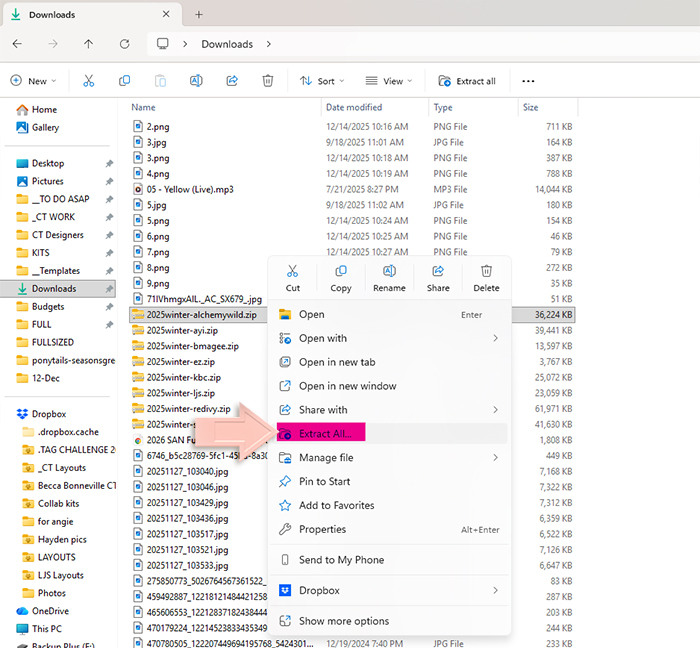
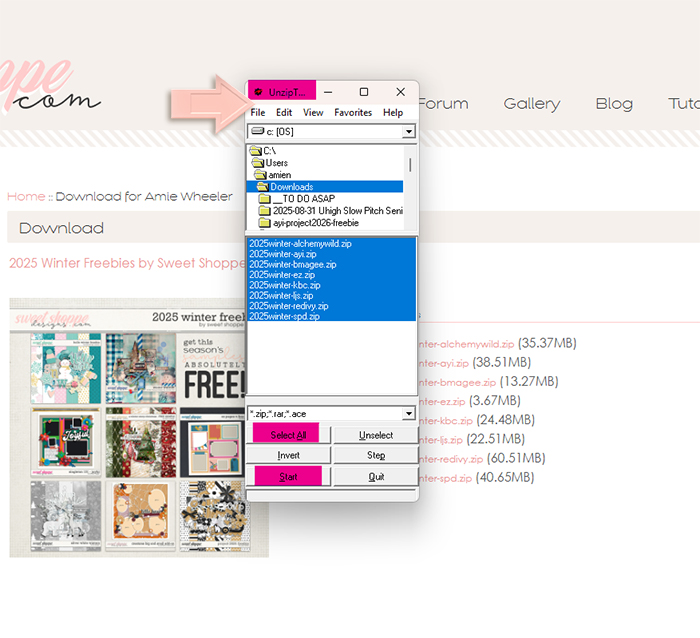
2. There are also many unzipping programs out there that will unzip all files in one batch. I have used UnzipThemAll for many years without any problems.
- –http://unzipthemall.en.softonic.com/
- -Open the unzipThemAll program, navigate to your downloads folder & select the .zip files to extract. Click Start & let the program do all the work for you!
ORGANIZING: Organizing digital supplies is something that many people do in different ways. I have even changed my organization system a few times over the years as I’ve discovered what works best for me. I’m sharing my system- but you do you babe!
- Delete extra files
- -I hate having all the extras in the folder, so I often delete the tou (after reading & understanding the terms of use of course,) the extra preview, store links etc.
- Combine folders
- -I prefer to have all my papers & cards each in a folder & all the elements loose. I tend to add all word arts & titles to the main elements too- I prefer to keep everything mostly together to see it all at once. I don’t like hunting through tons of folders- it’s too time consuming for me.
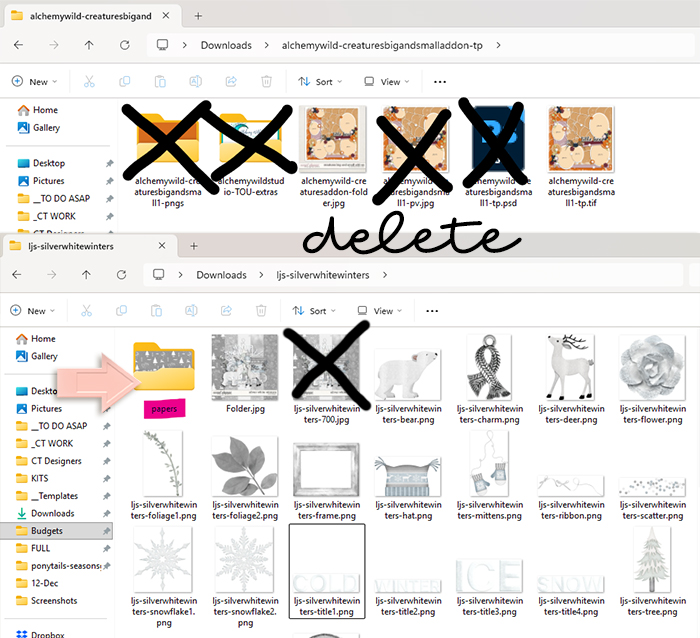
- -I prefer to have all my papers & cards each in a folder & all the elements loose. I tend to add all word arts & titles to the main elements too- I prefer to keep everything mostly together to see it all at once. I don’t like hunting through tons of folders- it’s too time consuming for me.
- Folder image
- -If the kit does not already have a folder image included, I like to create one, so the preview is the image I see in my folder on my computer.
- -Windows: double click & rename the preview image to “folder”
- -MacOS: find the preview image, copy it (using Preview or Control-click), select the target folder in Finder, open its Get Info window (File > Get Info), click the small folder icon at the top, and paste the image (Edit > Paste or Command-V)
- -If the kit does not already have a folder image included, I like to create one, so the preview is the image I see in my folder on my computer.
- Folder organization
- -I like to organize my digital scrapbooking supplies by designer, since I usually use only one collection at a time for creative team purposes. Many people organize by the store they purchased from, by theme/season, or not at all.