How to find and use a Character Map for Fonts in Windows
When I create custom handwriting fonts for my customers, I like to include their doodles, signature, or special letter symbols that help their writing look more like their own (they may write a “t” two different ways). But, remembering where to find that special character can be frustrating.
Or, you may have a font that you want to check to see if it includes special non-English language characters or symbols. This is when a Character Map comes in handy!
(This tutorial is written for Windows 7, but Windows XP and Vista are very similar.)
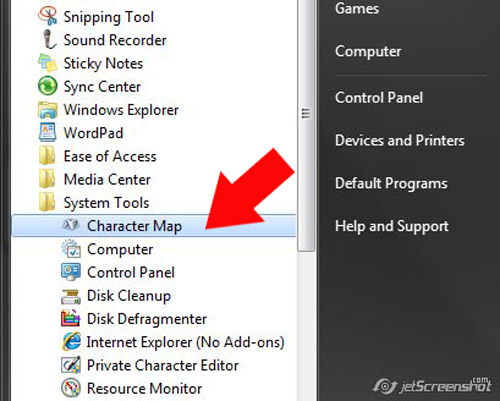
1 . Go to Start
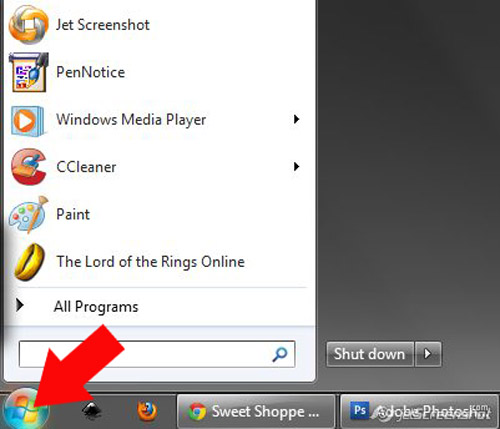
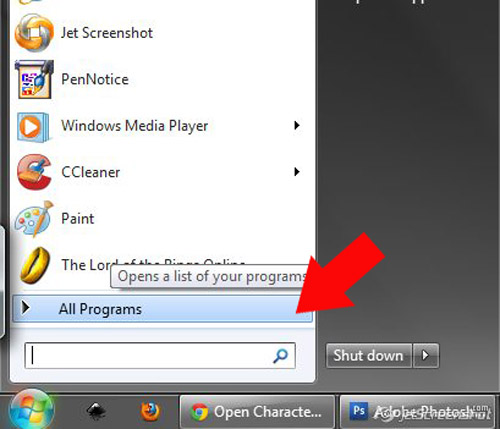
2. Click All Programs
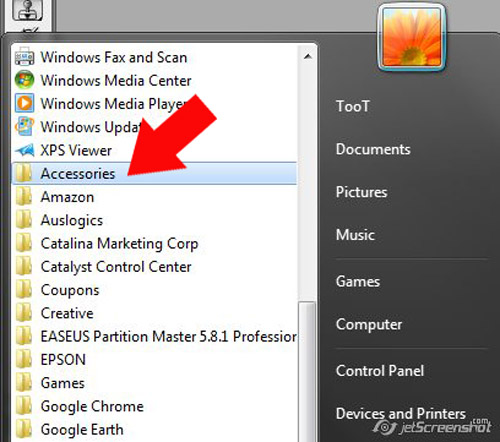
3. Click Accessories
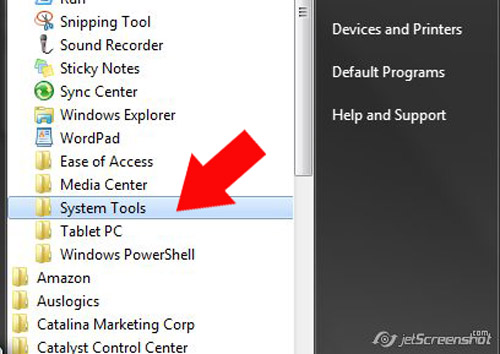
4. Click System Tools
5. Click Character Map
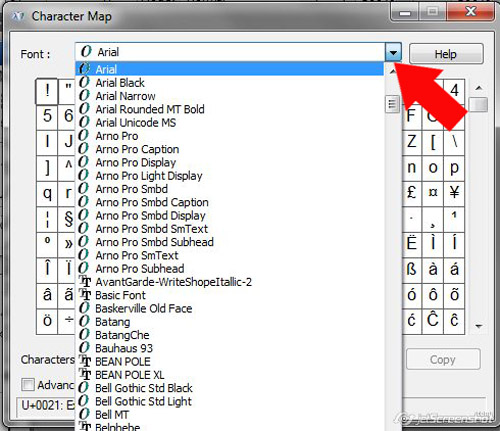
6. Select your desired font from the pull down menu
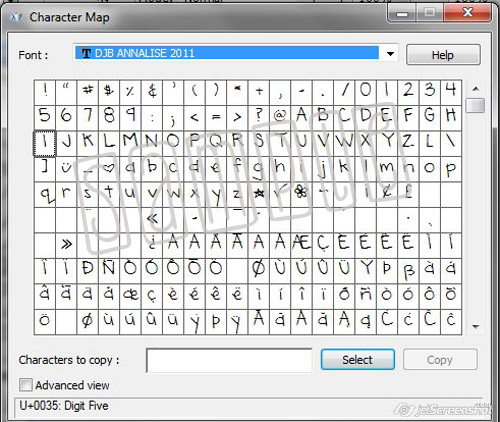
Here is what a character map in Windows looks like:
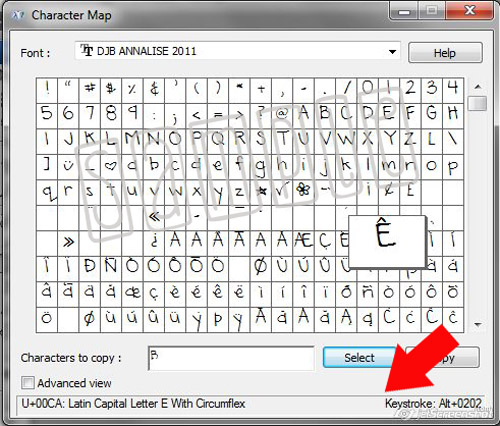
At the bottom of the character map, you’ll find the key combinations to get your special characters for symbols or non-English language characters if your font includes them.



Ashley Leigh said...
on November 3rd, 2013 at 7:50 pm
Oh thank you! This is great. I don’t know how I never knew that existed. This helps so much.
justine said...
on November 23rd, 2013 at 1:26 am
love this – TYVM!
Roberta Hoyt said...
on November 23rd, 2013 at 3:54 am
I agree with Ashley…this is so good to know! Thank you.
Andrea Barskiy said...
on May 24th, 2014 at 7:12 pm
Now, if Windows could only give us a way to print those character maps!!! 😛